Track the hours your team actually works
Staff clock in and out at a terminal in store or from their own phone. You review the hours and download them for payroll.
14-day free trial. No credit card needed.
What is shift tracking in WeRoster?
Shift tracking records when staff actually start and finish work, including their breaks. Staff clock in and out on a shared in-store terminal with their own PIN, or from their own phone. Every finished shift lands on the store's Shifts page for a manager to approve, deny or correct, and you can download the hours as a CSV file for payroll.
Who it's for
- Owners who want worked hours on record instead of handwritten timesheets.
- Stores with a shared tablet or computer at the counter or in the back office.
- Teams who work across sites and need to clock in from their own phone.
What does shift tracking include?
Store terminal
Set up a tablet or computer in store, unlocked with a store PIN. Staff tap their name and clock in with their own 4-digit PIN.
Or from their own phone
Staff can also start and end shifts from their Dashboard or Timetable on any device, if you allow it.
Breaks included
Staff start and end breaks as they go, and a shift can have more than one break. Time worked excludes breaks.
Jobs and notes
Optionally have staff pick the job they're working, like Kitchen or Front counter, and leave a comment when they clock out.
Review and approve
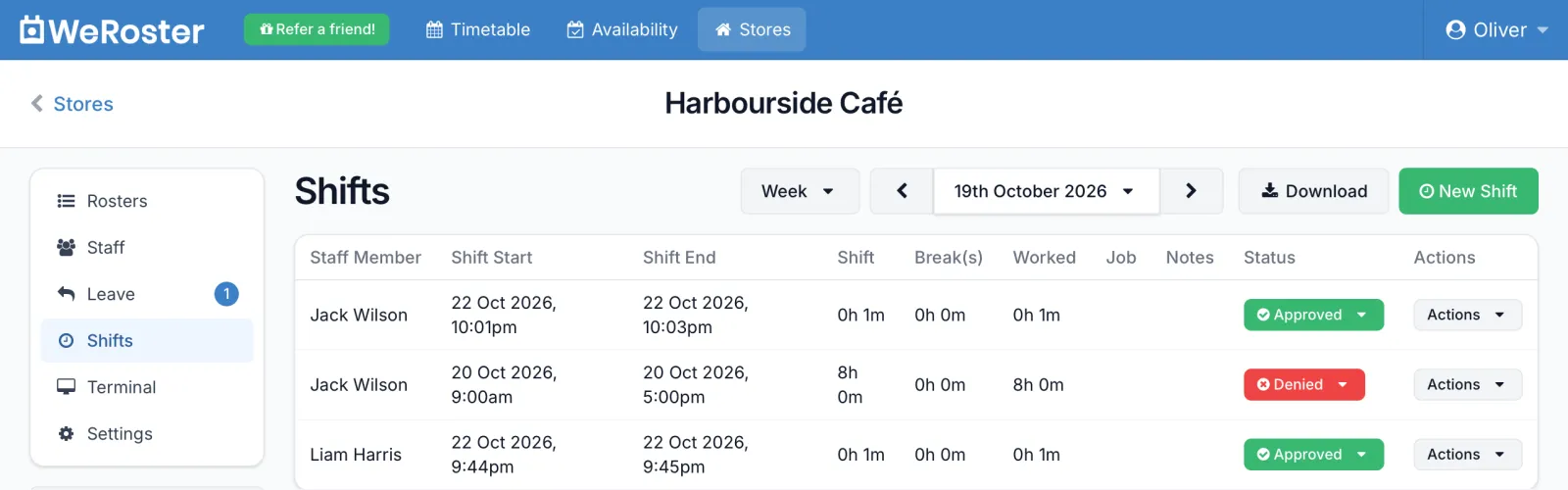
See shifts by day, week, month or year. Edit times, add missed shifts and approve or deny each one.
Download for payroll
Download the shifts for any period as a CSV file, ready for your payroll system or spreadsheet.
How do you set up shift tracking?
-
Turn it on
Open the store's Settings and tick Enable shift tracking. Under Staff can clock in from, tick Their own account, An in-store terminal, or both.
-
Add jobs if you want them
Fill in Shift Jobs, one per line, and staff choose one each time they clock in. Leave it empty to skip.
-
Set up the terminal
Set a 4-digit store PIN Code, open the Terminal URL on the in-store device and enter the PIN. Staff set their own PIN under Settings, then Security.
-
Staff clock in and out
Start Shift, Start Break, End Break and End Shift, with an optional comment at the end.
-
Review and download
Finished shifts appear on the Shifts page as Pending. Approve, deny or edit them, then click Download for payroll.
The clock-in terminal
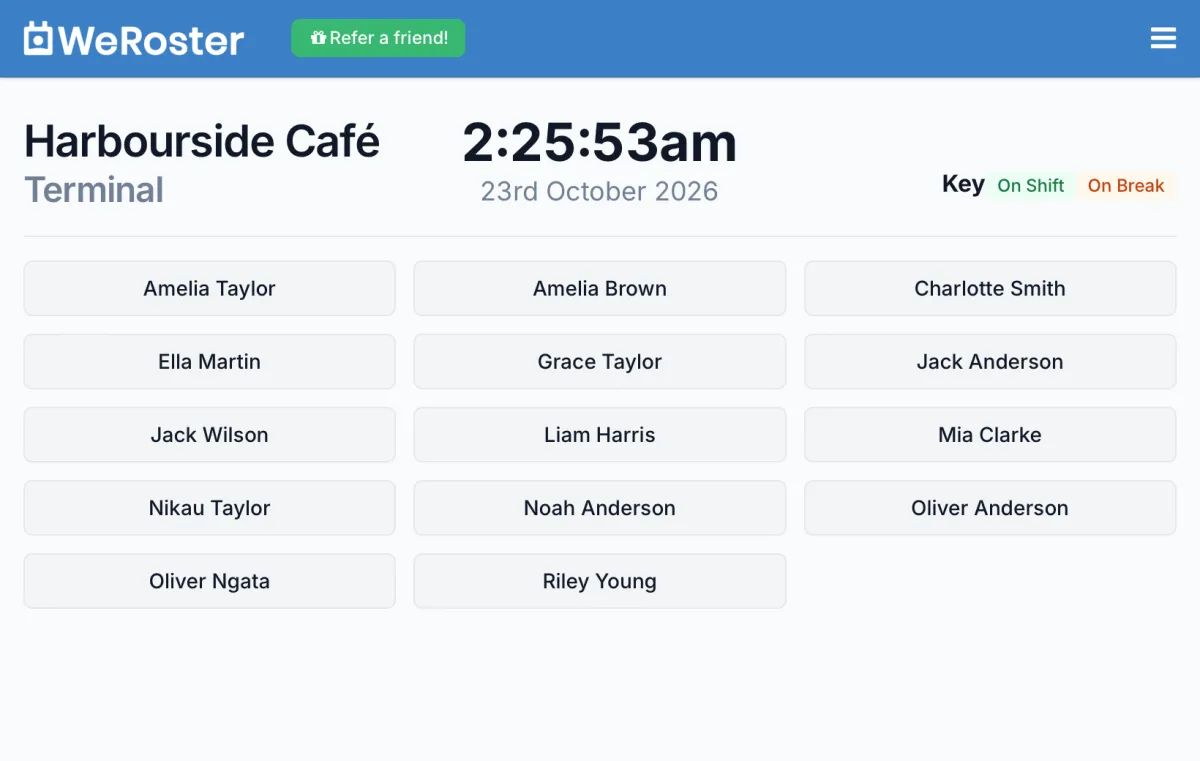
A shared device in store, so staff don't need their phones to clock in.
-
Who's on shift at a glance
Each name turns green when that person is on shift and orange while they're on a break.
-
A PIN for every person
The store PIN unlocks the terminal and each staff member uses their own 4-digit PIN, so nobody needs to stay logged in as a manager on the device.
-
Looks after itself
It shows a live clock and today's date, remembers the store PIN on that browser and refreshes itself every 10 minutes.
Rostered hours and worked hours, side by side
Build the plan in the roster editor, with wage costs as you go, and record what actually happened with shift tracking. Both live in the same store, with the same staff, so there's one place for the week's roster and one place for the hours your team worked.
Shift tracking: common questions
Do I need special hardware for the clock-in terminal?
No. Any tablet or computer with a web browser works. Open the store's Terminal URL on it, enter the 4-digit store PIN once, and the device remembers it.
Can staff clock in from their own phone?
Yes, if you tick Their own account under Staff can clock in from in the store's Settings. Staff then start and end shifts and breaks from their Dashboard or Timetable on any phone or computer. You can allow the terminal, their own account, or both.
How do staff clock in on the terminal?
They tap their name, enter their own 4-digit PIN, choose a job if your store uses them, and tap Start Shift. The same steps cover Start Break, End Break and End Shift. Each person sets their PIN in their account settings.
What if someone forgets to clock out, or to clock in?
A manager can fix it on the store's Shifts page. Use Actions then Edit shift to change the start, end or breaks, or click New Shift to add a shift someone forgot to clock.
Can I export hours for payroll?
Yes. On the Shifts page, choose a day, week, month or year and click Download to get a CSV file of the shifts in that period, with each staff member's start, end, duration, job and notes. It opens in Excel, Numbers or Google Sheets, ready for your payroll system.
Does WeRoster connect directly to my payroll software?
Not directly. Worked hours come out as a CSV file that you can use with your payroll system or spreadsheet.
Is shift tracking an extra cost?
No. Shift tracking is included on every plan. It is marked Beta in the app while we keep improving it, and it is off until you turn it on in a store's Settings.
Step-by-step guides
Our support centre walks through shift tracking screen by screen.
- Turning on shift tracking Let staff clock in and out and take breaks, from their own phone or a shared device in store, so you can see the hours they actually worked.
- Setting up the clock-in terminal Turn a tablet or computer in your store into a clock-in terminal: unlock it once with the terminal PIN, then staff tap their name and enter their own PIN.
- Reviewing and editing shifts Approve the shifts your staff clock, fix times, add a missed shift, browse by day, week, month or year, and download a CSV.
Something else? Browse the support centre or email [email protected].
More WeRoster features
Every feature is included on every plan, so you never pay extra to switch one on.
Roster editor
Drag shifts onto a 15-minute grid and watch hours and wage costs add up as you go. Public holidays are already marked.
Learn moreStaff availability
Staff set when they can and can't work, and you see it shaded right on the roster grid.
Learn moreLeave requests
Staff request leave in seconds. Approve or deny it in one place and they hear back by email.
Learn moreTeam updates
Roster emails, announcements to the whole team and a calendar feed for every staff member.
Learn moreTry it with your own team
Every feature is included on every plan, with unlimited stores. Pick a plan by team size, or pay annually and get one month free.
Mini
Basic
Standard
Pro
14-day free trial, no credit card needed. More than 65 staff? Talk to us.