Keep your whole team in the loop
Staff get their shifts by email the moment you publish, important news lands in everyone's inbox, and their roster can sit right in their phone's calendar.
14-day free trial. No credit card needed.
How does WeRoster keep staff up to date?
WeRoster does the messaging for you. Publishing a roster emails each staff member their own shifts for the week, changes can go to just the people affected, and an announcement reaches everyone at the store in one go. Staff can also subscribe to their shifts in Apple, Google or Outlook calendar, so there's no screenshotting the roster into a group chat.
Who it's for
- Managers who spend Sunday night texting each person their shifts.
- Owners who want one reliable channel for team news, not five group chats.
- Staff who want their shifts in the calendar they already use.
What does WeRoster send, and when?
Roster published emails
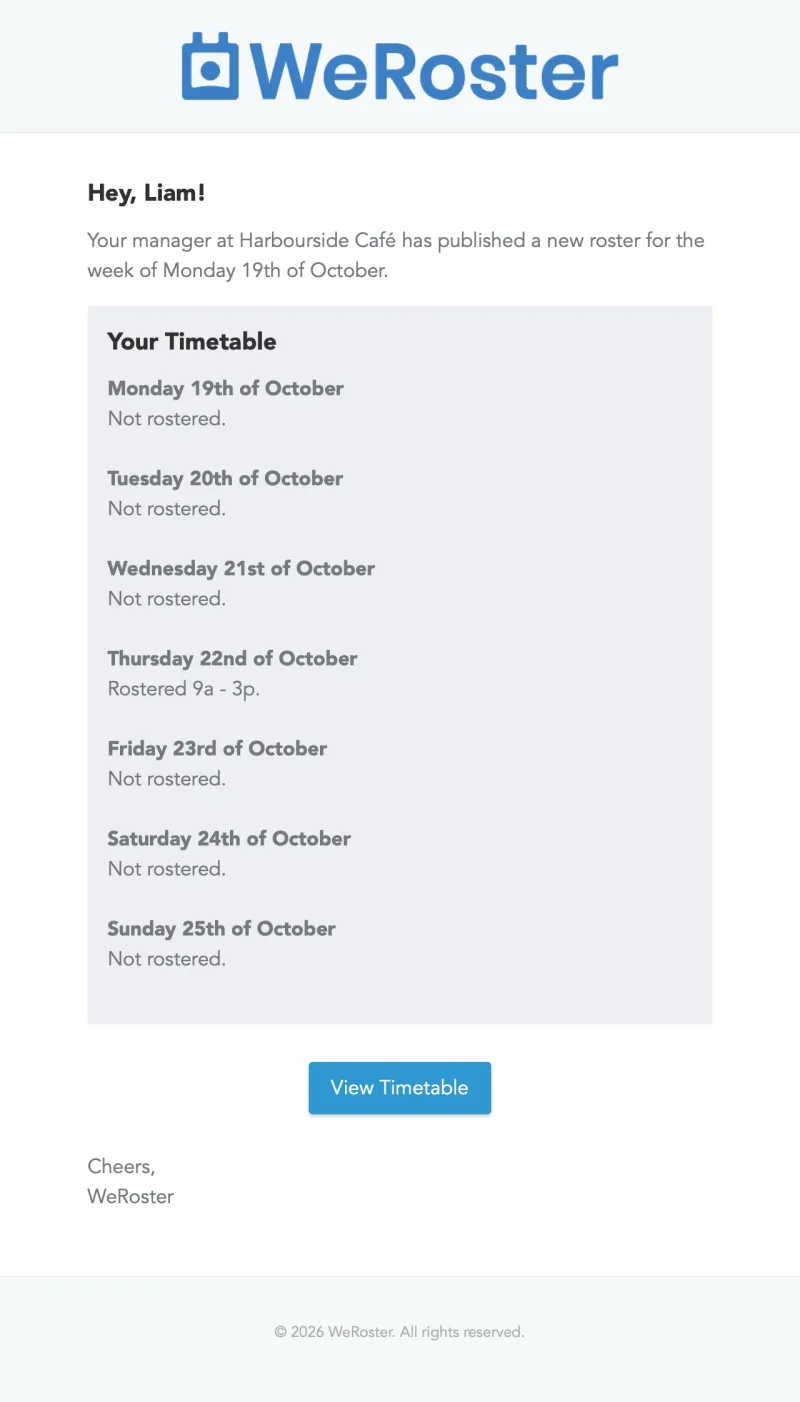
Staff are emailed when a new roster is published, with their shifts for each day and any day notes right in the email.
Only notify who matters
Email only the staff rostered that week, or only the people whose shifts changed, so nobody gets emails they don't need.
Email announcements
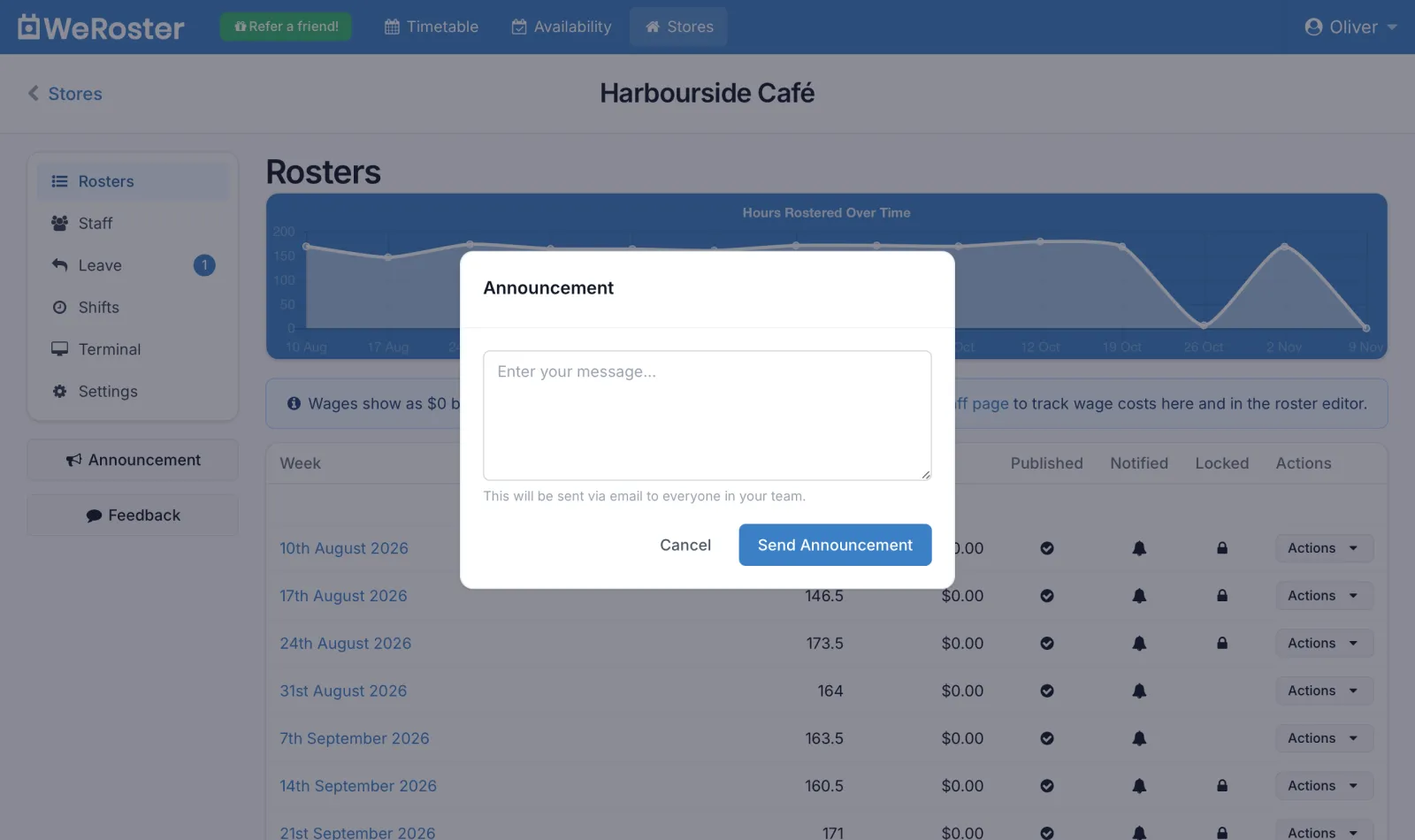
Managers send an announcement from the store page and every manager and staff member gets it by email.
Calendar feed
Staff subscribe to their shifts in Apple, Google or Outlook calendar, so their roster is always on their phone.
Roster PDF attached
Optionally attach a compact PDF of the roster to roster emails, for anyone who likes it printed.
Leave outcomes
Staff get an email the moment their leave request is approved or denied, with the manager's comment.
What does the roster email look like?
-
Publish & Notify
One click publishes the week and emails everyone at the store a Roster Published email with their own shifts.
-
Change something later
Edit the roster, then choose Notify only changed. Only the people whose shifts moved get a Roster Changed email.
-
Or publish quietly
Choose Publish roster to make it visible without emails, then Notify all when you're ready.
-
Staff check any time
Staff see published shifts on their Dashboard and Timetable, and in their calendar if they've subscribed.
One place per store
Running more than one store? Announcements and roster emails go to the team at that store, and each person's calendar feed covers every store they work at. Build the week in the roster editor, handle time off with leave requests, and let WeRoster tell everyone.
Team updates: common questions
How do staff find out a new roster is out?
When a manager clicks Publish & Notify, each staff member gets a Roster Published email listing their shifts for every day of the week, plus any day notes. Only staff who have verified their email address receive it.
Can I only email the people whose shifts changed?
Yes. After you edit a published roster, choose Notify only changed to email just the people whose shifts you changed, or Notify only rostered to email everyone working that week. Both send a Roster Changed email with their shifts.
How do I send a message to the whole team?
Open the store, click Announcement in the store menu, type your message and click Send Announcement. Every employee and manager at the store with a verified email gets it. Messages can be up to 1,024 characters, and the Announcement button shows on a computer or a large tablet.
Can staff see their shifts in Google Calendar or Apple Calendar?
Yes. Every user has a private calendar feed link under Settings, then Preferences, then Calendar Feed. Subscribe to it in Apple Calendar, Google Calendar or Outlook and it shows your shifts from last week, this week and the next two weeks, across every store you work at.
Can the roster email include a PDF?
Yes. Turn on Attach the roster as a PDF in the store's Settings and a compact PDF of the roster is attached to the roster emails.
Do staff need an app to get updates?
No. Updates arrive by email, and staff can check their shifts in WeRoster in any web browser on their phone or computer.
Step-by-step guides
Our support centre walks through team updates screen by screen.
- Publishing, notifying and locking rosters What Publish, Notify and Lock each do, how to tell staff about changes, and how to unpublish or unlock a roster.
- Sending an announcement to your team Email a message to everyone at a store in one go with the Announcement button in the store header.
- Adding your shifts to your calendar Subscribe to your WeRoster shifts in Apple Calendar, Google Calendar or Outlook with your private calendar feed link.
- Your Timetable Your home page in WeRoster: your next shift, your week, the full roster, your leave, and for managers a card for each store with who's on now and what needs doing.
Something else? Browse the support centre or email [email protected].
More WeRoster features
Every feature is included on every plan, so you never pay extra to switch one on.
Roster editor
Drag shifts onto a 15-minute grid and watch hours and wage costs add up as you go. Public holidays are already marked.
Learn moreStaff availability
Staff set when they can and can't work, and you see it shaded right on the roster grid.
Learn moreLeave requests
Staff request leave in seconds. Approve or deny it in one place and they hear back by email.
Learn moreShift tracking
BetaStaff clock in and out on an in-store terminal or their own phone. Review the hours and download them for payroll.
Learn moreTry it with your own team
Every feature is included on every plan, with unlimited stores. Pick a plan by team size, or pay annually and get one month free.
Mini
Basic
Standard
Pro
14-day free trial, no credit card needed. More than 65 staff? Talk to us.