Leave requests without the paper forms
Staff ask for time off in seconds, you approve or deny it in one place, and the roster shows who's away.
14-day free trial. No credit card needed.
What are leave requests in WeRoster?
Leave requests let staff ask for time off from their own phone or computer instead of a text, a sticky note or a word at the counter. Every request lands on the store's Leave page, where a manager approves or denies it with an optional comment, and the staff member gets an email with the outcome. Approved leave is blocked out on their availability, so it shows when you build the roster.
Who it's for
- Managers who have lost track of who asked for which Saturday off.
- Owners who want a record of every request and who approved it.
- Staff who want to know their leave is sorted without chasing anyone.
What do leave requests include?
Quick to request
Staff pick the type of leave, the start and end, and add a reason if they want to. The total time is worked out for them.
Approve or deny in one place
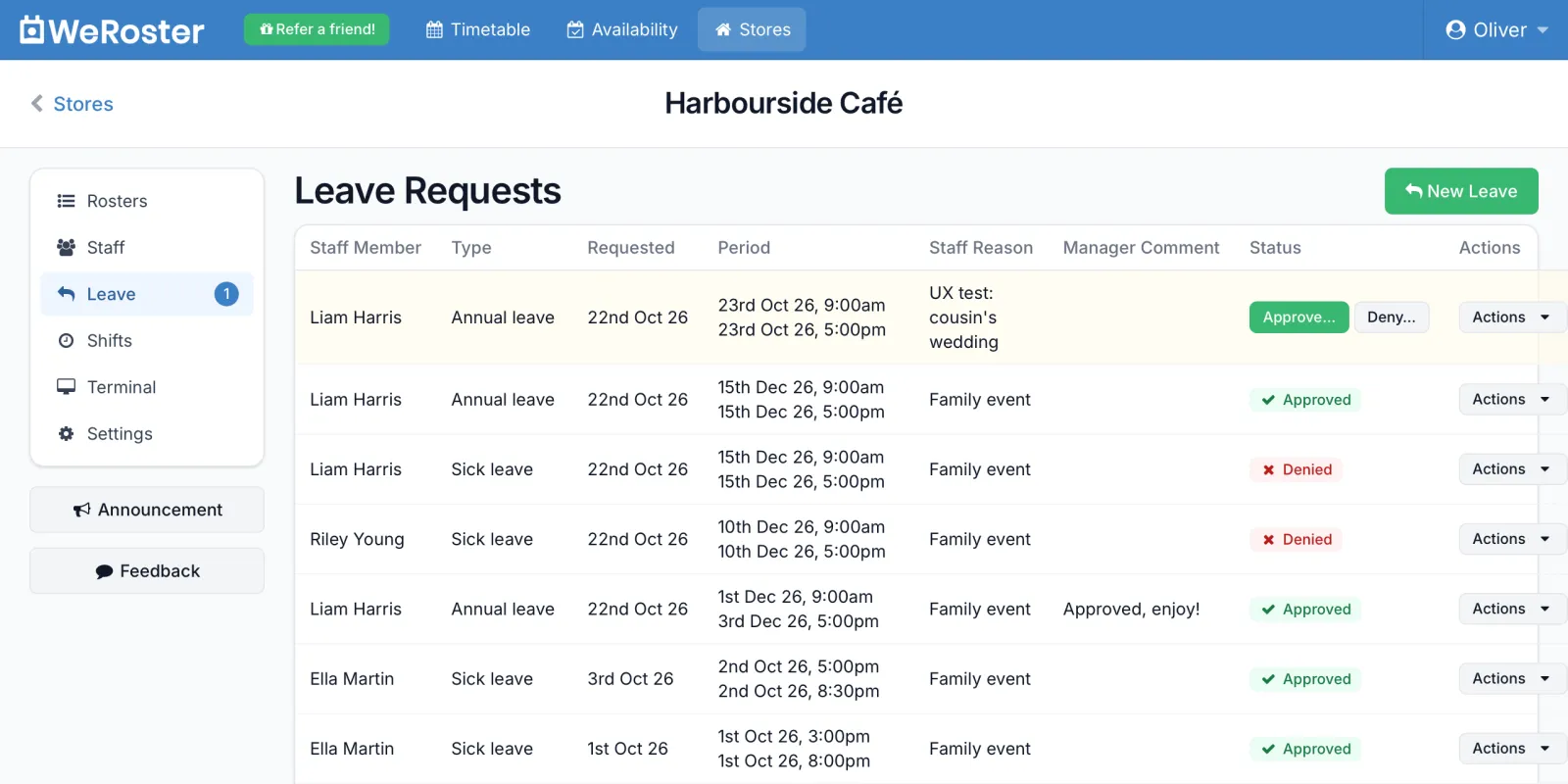
Pending requests are highlighted on the Leave page. Approve or deny with an optional comment, and see who actioned each one.
Staff hear back by email
As soon as a request is approved or denied, the staff member gets an email letting them know, with your comment.
Shows on the roster
Approved leave is marked as unavailable time, so it shows in red in the roster editor while you build the week.
PDF for your records
Download any leave request as a tidy PDF for payroll or your staff files.
Log leave for staff
Managers can enter leave on someone's behalf when it comes in by phone or in person.
How does a leave request work?
-
Staff send the request
From their Dashboard, staff click New Leave Request, choose the Type of Leave, set Start of Leave and End of Leave, add an optional Reason and click Send Request.
-
It waits on the Leave page
The store's Leave page lists every request, with pending ones highlighted. A number next to Leave in the store menu shows how many are waiting.
-
A manager decides
Click Approve… or Deny…, add a comment if you like, and confirm. You can also edit the dates or type first.
-
Everyone is up to date
The staff member gets an email with the outcome and sees it on their Dashboard. Approved time is marked unavailable, so it shows when you open the roster.
Leave types for New Zealand teams
Staff choose from the leave types Kiwi workplaces use every day: Annual leave, Sick leave, Bereavement leave, Parental leave, Leave without pay, Alternative day (a day in lieu for working a public holiday) and Other. Start and end times are in 15-minute steps, so a half day or a late start is recorded exactly.
WeRoster keeps the request, the decision, the comments and who made the call. It doesn't calculate leave balances or holiday pay: those stay in your payroll system, and the PDF of each request is there if you need it. Public holidays, including Matariki, already show on the roster editor, and regular days off belong in staff availability.
Leave requests: common questions
How does a staff member request leave in WeRoster?
On their Dashboard they click New Leave Request (or on their Timetable, Actions then Request Leave), choose the type of leave, set the start and end, add a reason if they want to, and click Send Request. It works on any phone or computer.
What types of leave can staff request?
Alternative day, Annual leave, Bereavement leave, Leave without pay, Parental leave, Sick leave and Other.
Do staff find out when their leave is approved?
Yes. As soon as a manager approves or denies a request, the staff member gets a Leave Request Approved or Leave Request Denied email, including any comment the manager added. The outcome also shows on their Dashboard.
Are managers emailed about new leave requests?
No. New requests wait on the store's Leave page, and a number next to Leave in the store menu shows how many need a decision, so check it when you sit down to roster.
Does approved leave show on the roster?
Approving leave marks that time as unavailable on the staff member's availability, so it shows in red behind their row in the roster editor. It does not remove shifts that are already rostered, so check the week after approving.
Can a manager enter leave for a staff member?
Yes. On the Leave page click New Leave, choose the employee, the type and the dates, and click Add Leave. Use Add & Create Another to enter several in a row.
Does WeRoster track leave balances or holiday pay?
No. WeRoster records the request, the decision and who made it, and you can download any request as a PDF. Leave balances and holiday pay stay in your payroll system.
Step-by-step guides
Our support centre walks through leave requests screen by screen.
- Requesting leave How to ask for time off from your Timetable, follow your request, and see your manager's reply.
- Managing leave requests Approve or deny staff leave in one tap, add a comment, edit a request, add leave for someone and download a leave request as a PDF.
- Setting your availability Tell your managers when you can and can't work, four weeks at a time. Your availability shows on the roster while they build it.
Something else? Browse the support centre or email [email protected].
More WeRoster features
Every feature is included on every plan, so you never pay extra to switch one on.
Roster editor
Drag shifts onto a 15-minute grid and watch hours and wage costs add up as you go. Public holidays are already marked.
Learn moreStaff availability
Staff set when they can and can't work, and you see it shaded right on the roster grid.
Learn moreShift tracking
BetaStaff clock in and out on an in-store terminal or their own phone. Review the hours and download them for payroll.
Learn moreTeam updates
Roster emails, announcements to the whole team and a calendar feed for every staff member.
Learn moreTry it with your own team
Every feature is included on every plan, with unlimited stores. Pick a plan by team size, or pay annually and get one month free.
Mini
Basic
Standard
Pro
14-day free trial, no credit card needed. More than 65 staff? Talk to us.