Know who can work before you roster them
Staff keep their own availability up to date, and you see it right inside the roster editor. No more texts asking who's free on Saturday.
14-day free trial. No credit card needed.
What is staff availability in WeRoster?
Staff availability is where each person tells you when they can and can't work. They drag across the hours on the Availability page, and when a manager opens the roster, that availability is shaded behind each person's row: green for available, red for unavailable. You roster around it instead of chasing replies in a group chat.
Who it's for
- Teams with students and part-timers whose hours change from week to week.
- Managers tired of asking who can cover Saturday and waiting for replies.
- Staff who want a simple way to say when they can work, from their own phone.
What does staff availability do?
Staff set it themselves
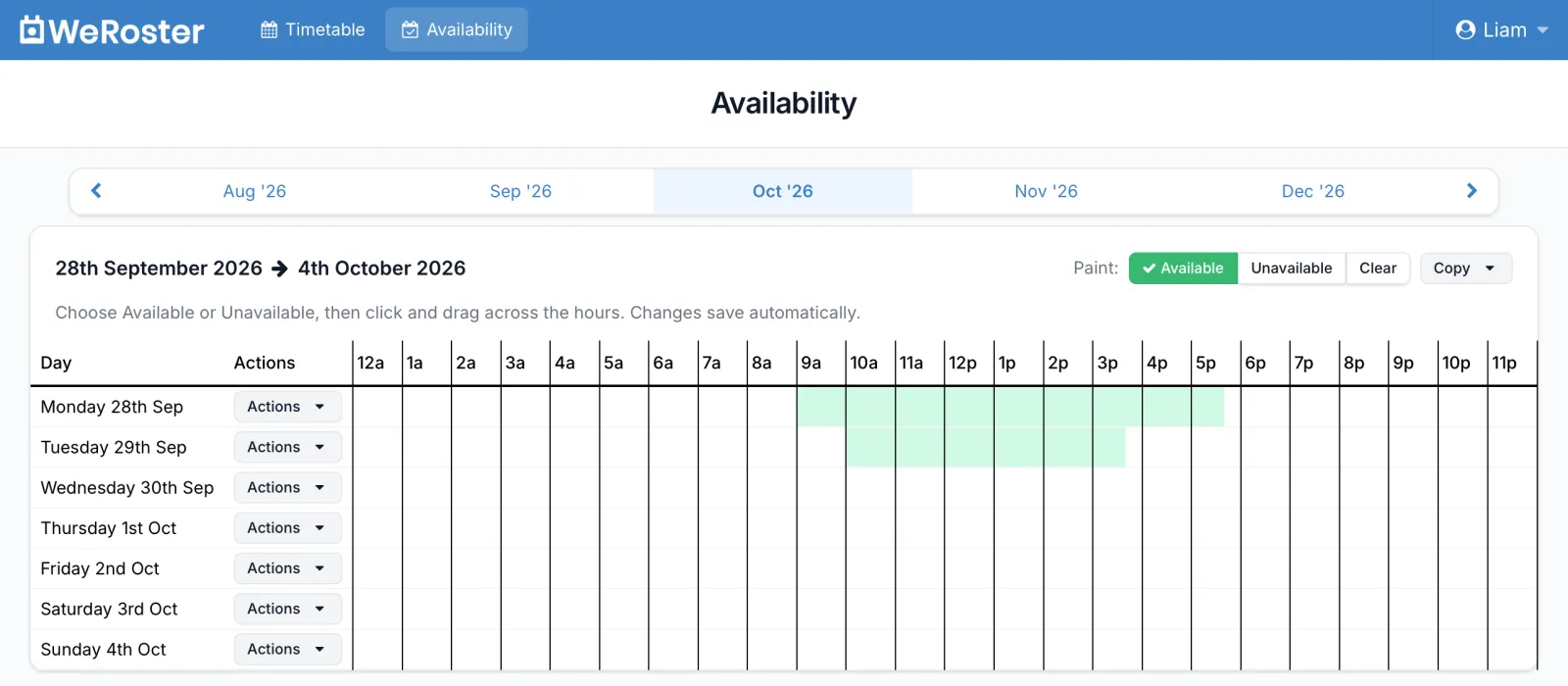
Choose Available or Unavailable and drag across the hours, in 15-minute steps. It saves as soon as you let go.
Built into the roster
Availability sits behind each person's row in the roster editor, so unavailable time shows in red while you build shifts.
Copy days and weeks
Same hours every week? Copy a week to the next or previous week, or a day to the next or previous day.
Leave blocks time automatically
Approve a leave request and that time is marked unavailable for you. Nothing to update twice.
Plan months ahead
Flick between months and fill in availability as far ahead as you like.
Nothing to install
Staff use WeRoster in any web browser on their phone or computer. No app download needed.
How do staff set their availability?
-
Open Availability
Staff log in and click Availability in the top bar, then pick the month from the strip along the top.
-
Paint the hours
Next to Paint:, choose Available, Unavailable or Clear, then click and drag across the hours on each day. On a phone, use each day's Actions menu to mark the whole day.
-
Copy it forward
Use Copy on a week to copy it to the next or previous week, so a regular pattern only needs setting once.
-
Managers roster around it
When a manager opens the roster editor, each person's availability is shaded behind their row for every day of the week.
Availability, leave and the roster, working together
Availability is for the regular pattern: the uni timetable, the school run, the second job. For a specific day off, staff send a leave request instead. When you approve it, WeRoster blocks that time out on their availability, so it shows in red when you open the roster editor.
Once the roster is published, staff see their shifts on their Dashboard and Timetable, get an email with their week, and can add their shifts to their phone's calendar. See team updates.
Staff availability: common questions
Do my staff need to download an app?
No. WeRoster runs in any web browser, so staff set their availability on their own phone or computer by logging in. There is nothing to install.
Can staff set their availability on a phone?
Yes. On a phone each day has an Actions menu with Available all day, Unavailable all day and Clear day. To set exact hours in 15-minute steps, open the Availability page on a computer and drag across the hours.
Does availability stop a manager rostering someone?
No. Availability shows as green and red shading behind each person's row in the roster editor, so managers can see it at a glance, but they can still roster anyone. It is a guide, not a lock.
What happens to availability when leave is approved?
When a manager approves a leave request, WeRoster marks that time as unavailable on the staff member's availability, so it shows in red on the roster. Shifts already on the roster are not removed, so check the week after approving leave.
I work at more than one store. Do I set availability for each one?
No. You set your availability once and the same availability shows at every store you work at.
How far ahead can staff set availability?
As far as they like. The Availability page has a strip of months to flick between, and a week or a day can be copied forward or back in one click.
Who can see a staff member's availability?
The owner and managers of the stores they work at, in the roster editor. Each person sets their own availability, whether they are an employee, a manager or an owner.
Step-by-step guides
Our support centre walks through staff availability screen by screen.
- Setting your availability Tell your managers when you can and can't work, four weeks at a time. Your availability shows on the roster while they build it.
- Requesting leave How to ask for time off from your Timetable, follow your request, and see your manager's reply.
- Using the roster editor How the roster editor works: the week strip and summary, the 15-minute grid, roles, day notes, changing a day's hours, sorting staff and the daily totals.
- Your Timetable Your home page in WeRoster: your next shift, your week, the full roster, your leave, and for managers a card for each store with who's on now and what needs doing.
Something else? Browse the support centre or email [email protected].
More WeRoster features
Every feature is included on every plan, so you never pay extra to switch one on.
Roster editor
Drag shifts onto a 15-minute grid and watch hours and wage costs add up as you go. Public holidays are already marked.
Learn moreLeave requests
Staff request leave in seconds. Approve or deny it in one place and they hear back by email.
Learn moreShift tracking
BetaStaff clock in and out on an in-store terminal or their own phone. Review the hours and download them for payroll.
Learn moreTeam updates
Roster emails, announcements to the whole team and a calendar feed for every staff member.
Learn moreTry it with your own team
Every feature is included on every plan, with unlimited stores. Pick a plan by team size, or pay annually and get one month free.
Mini
Basic
Standard
Pro
14-day free trial, no credit card needed. More than 65 staff? Talk to us.