Build next week's roster in minutes
Click and drag shifts onto a 15-minute grid, with staff availability, hours and wage costs right in front of you.
14-day free trial. No credit card needed.
What is the WeRoster roster editor?
The roster editor is where owners and managers build each week's staff roster. You drag along a person's row on a 15-minute grid to add a shift, see their availability, hours and wage costs as you go, then publish the week and WeRoster emails everyone their shifts. It replaces the spreadsheet or paper roster most small teams start with.
Who it's for
- Cafe, retail and hospitality managers who roster in Excel or on paper and want their Sunday night back.
- Owners running more than one store, with managers who roster each one.
- Managers who need to fix a roster from their phone when someone calls in sick.
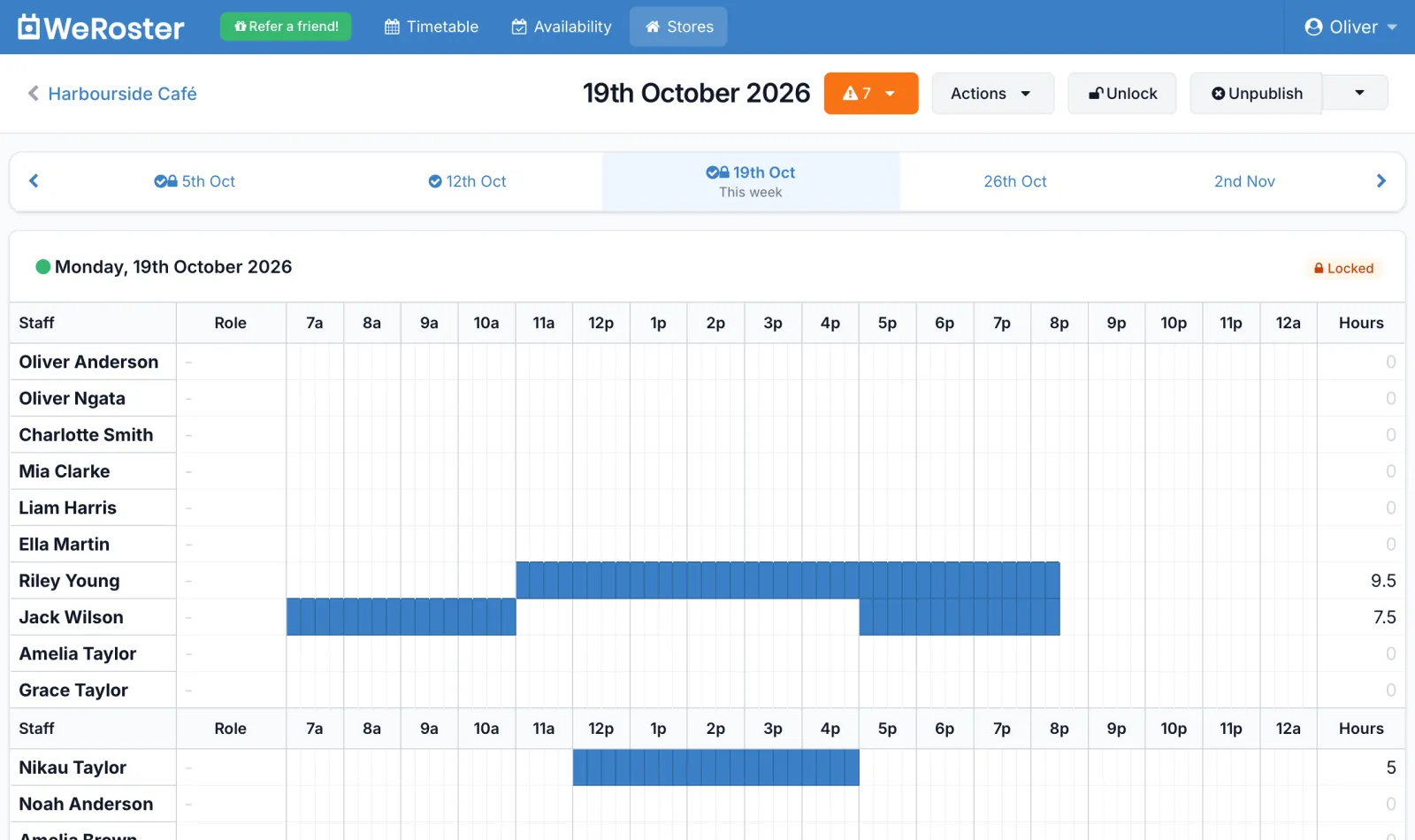
What can you do in the roster editor?
A 15-minute grid
Every hour is split into four slots, so a 9:15 start or a 2:45 finish is exact. Leave a gap in a row for a break or a split shift.
Availability in view
Green and red shading behind each row shows when people said they can and can't work, including approved leave.
Hours and wage costs
Each day shows hours rostered and wages. Add estimated sales to see wage cost as a percentage before you publish.
Roles and day notes
Pick a role for each person each day, like Barista or Kitchen, and leave a note such as Stocktake after close.
Copy weeks and days
Copy a whole week to any other week, or a day to the day before or after, then tweak what changed.
Contracted hours warnings
Set weekly hours (like 30, or 15-20) and WeRoster flags anyone rostered under or over.
See it in action
Short clips of the roster editor. Pick one, or let them play through.
How do you build a roster in WeRoster?
-
Open the week
Go to Stores, open your store and click the week on the Rosters page. A strip of nearby weeks along the top lets you jump around.
-
Drag on the shifts
On a computer, click and drag along someone's row. On a phone, tap where the shift starts, then where it ends. Drag over a shift to remove it. Every change saves automatically.
-
Add roles and notes
Choose a Role for anyone who needs one and click Add Note for anything the team should know that day.
-
Check the numbers
Under each day you'll see hours rostered, wages and wage cost against your estimated sales. The orange warning button lists anyone under or over their weekly hours.
-
Publish and notify
Click Publish & Notify. Staff can now see the roster, and each person gets an email with their shifts for the week.
-
Copy it forward
Next week, click Actions, then Copy to different week, and only change what's different.
Made for rostering in New Zealand
The details that matter when you roster a Kiwi team.
-
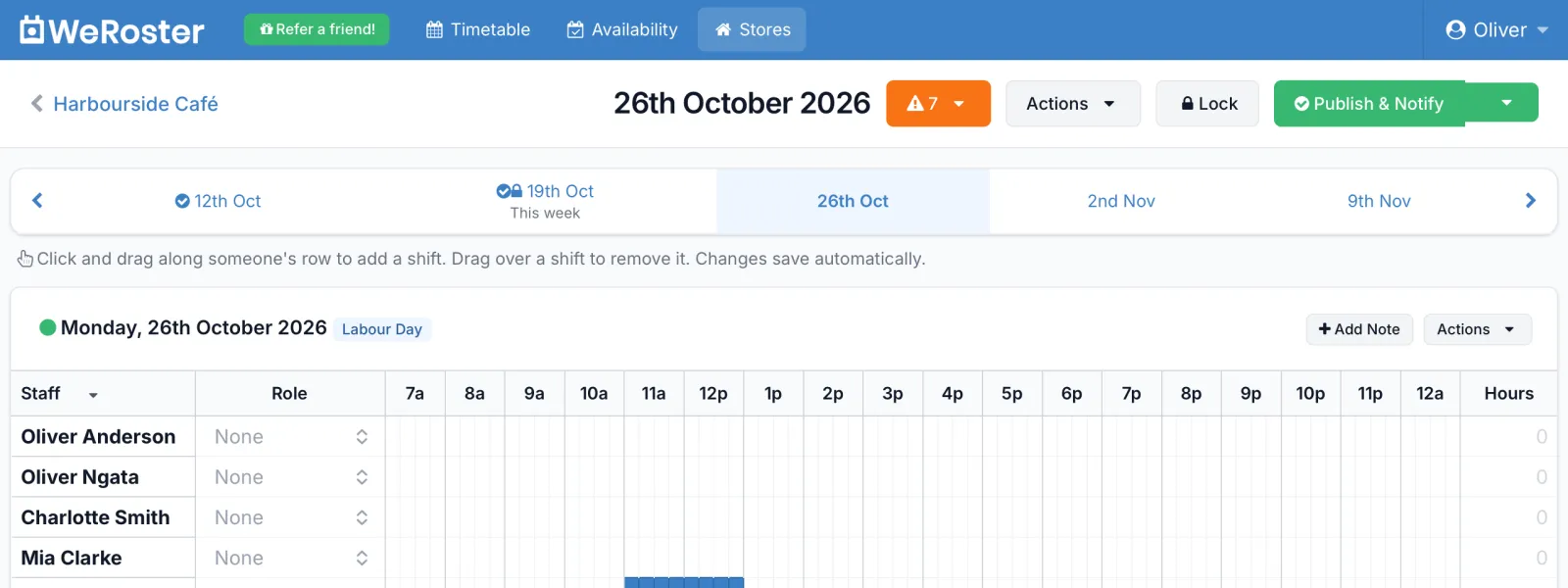
Public holidays already marked
New Zealand's national public holidays, including Matariki and Mondayised days, show as a label on the right day. No more realising on Thursday that Monday is Labour Day.
-
Change a day's hours
Opening late on a public holiday or staying open for a late night? Use Change hours on that day without touching the rest of the week.
-
Owner, manager and employee roles
Managers build and publish rosters for their stores. Staff only see the roster once it's published, and never see wages.
-
Local support
Questions go to real people who know New Zealand rostering, at [email protected].
What happens when you publish?
Publish & Notify makes the week visible to your staff and emails each person a Roster Published email with their shifts for every day, plus any day notes. Prefer to publish quietly? Publish without emails and notify later.
Changed a few shifts after publishing? Notify only changed emails just the people whose shifts moved, and Notify only rostered skips anyone not working that week. You can attach a PDF of the roster to these emails, download a full or compact PDF to pin up in the staffroom, and Lock a finished week so nobody changes it by accident.
Staff can also add their shifts to their phone's calendar. See team updates and staff availability.
Roster editor: common questions
Can I build a roster on my phone?
Yes. On a phone or tablet the roster editor uses tap-to-roster: tap the 15-minute slot where a shift starts, then tap where it ends, and WeRoster fills in everything between. It saves automatically. See Rostering on your phone.
Does WeRoster show New Zealand public holidays on the roster?
Yes. National public holidays, including Matariki and Mondayised holidays, appear as a label on the right day in the roster editor automatically. Regional anniversary days are not shown, so add a day note for your local one.
Can I copy last week's roster?
Yes. Open the week, click Actions, choose Copy to different week and pick the week to copy to. Shifts, roles, day notes and estimated sales are copied, replacing whatever was in that week. You can also copy a single day to the day before or after.
How do my staff see their roster?
When you click Publish & Notify, each staff member gets an email listing their shifts for the week. They can also see their shifts in WeRoster on any phone or computer, and subscribe to a calendar feed for Apple, Google or Outlook calendar.
Can I see what the roster costs in wages?
Yes. Add an hourly wage for each staff member and the roster editor shows the wages for each day as you build it. Add your estimated sales for the day and you also see wage cost as a percentage of sales. Owners always see wages, managers only if you allow it, and employees never do.
How do I roster a split shift or a break?
Leave a gap in the person's row. A staff member can have more than one shift in a day, and the gap between them is their break.
Will WeRoster stop me rostering someone who is unavailable?
No. Availability is shaded behind each person's row so you can see it at a glance, but you stay in charge. If you set weekly contracted hours, WeRoster also warns you when someone is over or under.
Is the roster editor included in every plan?
Yes. Every WeRoster plan includes every feature, from Mini (up to 10 staff, $15 a month) to Pro (51 to 65 staff, $65 a month). Start with a 14-day free trial, no credit card needed.
Step-by-step guides
Our support centre walks through roster editor screen by screen.
- Using the roster editor How the roster editor works: the week strip and summary, the 15-minute grid, roles, day notes, changing a day's hours, sorting staff and the daily totals.
- Building and publishing your first roster Open a week, add shifts on the 15-minute grid, check the totals, then publish and notify your team.
- Rostering on your phone Build and change rosters from a phone or tablet with tap-to-roster: tap the start, tap the end.
- Copying a roster to another week Copy last week into this one, copy a week forward to any other week, or copy a single day, so you're not starting from scratch.
- Publishing, notifying and locking rosters What Publish, Notify and Lock each do, how to tell staff about changes, and how to unpublish or unlock a roster.
- Wage costs and estimated sales See what each day and week of the roster costs in wages, and your wage cost as a percentage of estimated sales.
- Contracted hours warnings Set each person's weekly hours and WeRoster warns you on the roster when someone is under or over.
- Downloading and printing rosters Download a roster as a full or compact PDF to print, share or pin up in the staffroom.
Something else? Browse the support centre or email [email protected].
More WeRoster features
Every feature is included on every plan, so you never pay extra to switch one on.
Staff availability
Staff set when they can and can't work, and you see it shaded right on the roster grid.
Learn moreLeave requests
Staff request leave in seconds. Approve or deny it in one place and they hear back by email.
Learn moreShift tracking
BetaStaff clock in and out on an in-store terminal or their own phone. Review the hours and download them for payroll.
Learn moreTeam updates
Roster emails, announcements to the whole team and a calendar feed for every staff member.
Learn moreTry it with your own team
Every feature is included on every plan, with unlimited stores. Pick a plan by team size, or pay annually and get one month free.
Mini
Basic
Standard
Pro
14-day free trial, no credit card needed. More than 65 staff? Talk to us.